update-event

Chitubox Plugins & Configuration of Orange 4K | Chitubox Set Printer - LONGER
Chitubox Plugins & Configuration of Orange 4K | Chitubox Set Printer

This article will help you solve CHITUBOX printer settings or CHITUBOX set printer issues. The LONGER Orange 4K 3D Printer is compatible with CHITUBOX slicing software. Please follow the steps below to complete the setup and configuration for stable resin printing.


Table of Contents

  • What This Guide Covers
  • Why This Process Matters
  • Before You Start
    • Requirements
    • Precautions
  • Step-by-Step Tutorial
    • Step 1: Install the Plugin for Orange 4K in CHITUBOX
    • Step 2: Import the Configuration for Orange 4K Printing Parameters
  • Common Problems and Solutions
  • Tips for Better Results
  • Frequently Asked Questions
  • Final Thoughts

What This Guide Covers

In this guide, you will learn how to:

  • Install the official Orange 4K plugin in CHITUBOX
  • Import default printing configurations from LONGER
  • Use the Orange 4K Mono and 4K Color parameters correctly
  • Reference printing parameters when using other resin brands

Quick Answer

To configure the Orange 4K in CHITUBOX:

  1. Download the appropriate .CHplugin file for your operating system.
  2. Run CHITUBOX and import the plugin.
  3. Import the official Orange 4K configuration file.
  4. Use default LONGER printing parameters as a reference for all your resin profiles.

Following these steps ensures compatible slicing files, correct exposure settings, and stable print results.


Why This Process Matters

CHITUBOX requires the correct plugin and configuration to communicate with the LONGER Orange 4K printer. Without it:

  • Print files may not be compatible
  • Resin exposure settings may be incorrect
  • Print quality can degrade
  • Print failures may occur

Using the official plugin and default configuration ensures stable printing, especially for beginners.


Before You Start

Requirements

  • LONGER Orange 4K or Orange 4K Mono 3D printer
  • CHITUBOX installed on your computer
  • Internet connection for downloading plugins and configuration files
  • Official LONGER Orange 4K configuration files
  • Administrative access to your computer

Precautions

  • Use only official plugin and configuration files
  • Close unnecessary software before installation
  • Do not rename plugin files
  • Do not modify exposure values initially
  • Follow official machine specifications or instructions

Step-by-Step Tutorial

Step 1: Install the Plugin for Orange 4K in CHITUBOX

Action

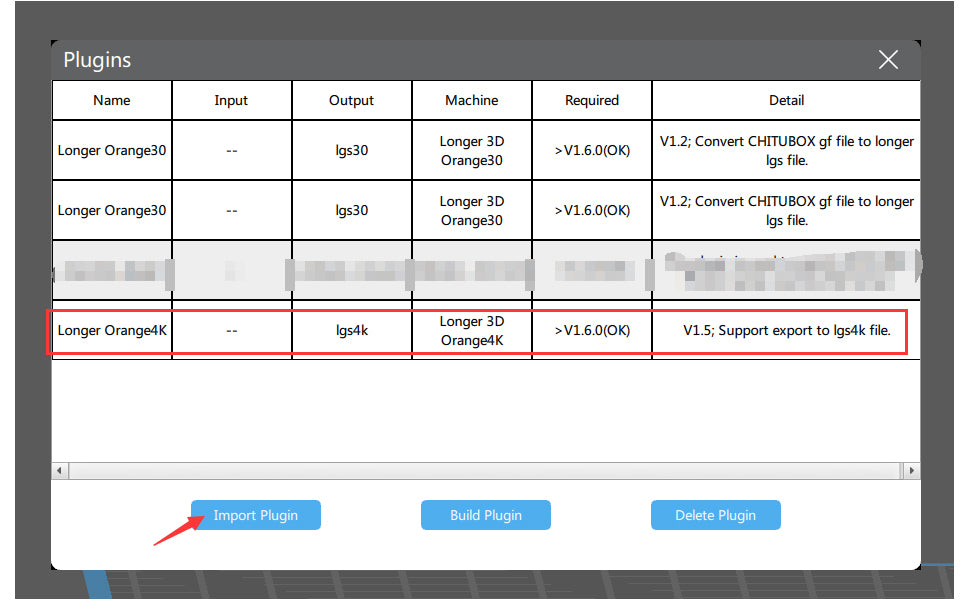
Run CHITUBOX and import the plugin. Download the plugin files for your system:

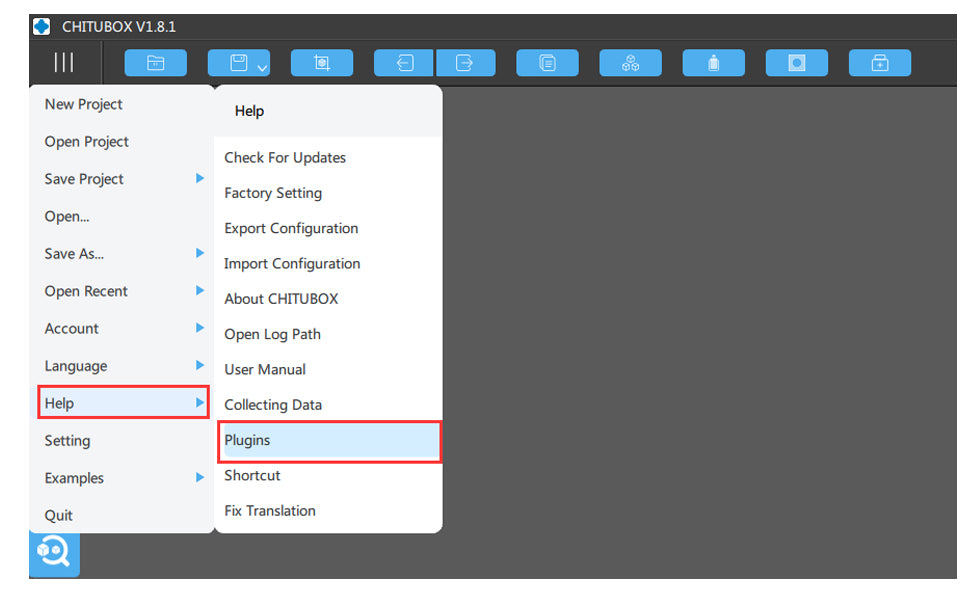
Open CHITUBOX and import the .CHplugin file from:

Main Menu > Help > Plugin

Expected Result

  • CHITUBOX recognizes the Orange 4K printer
  • Compatible slicing files can be generated
  • Orange 4K printer becomes available for all supported workflows

Important Notes

  • Ensure the plugin matches your operating system
  • If the plugin fails, restart CHITUBOX and re-import the file
 

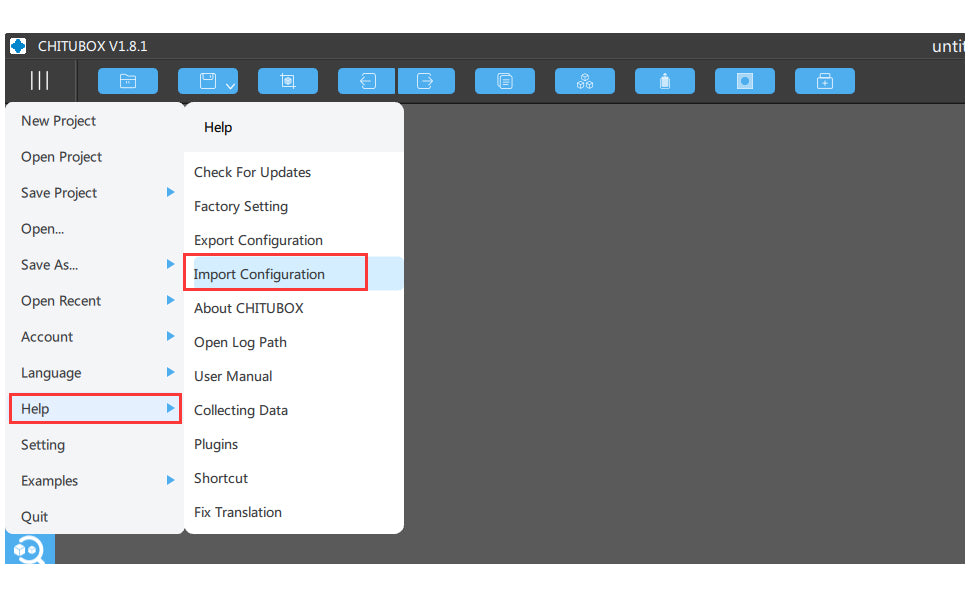
Step 2: Import the Configuration for Orange 4K Printing Parameters

Action

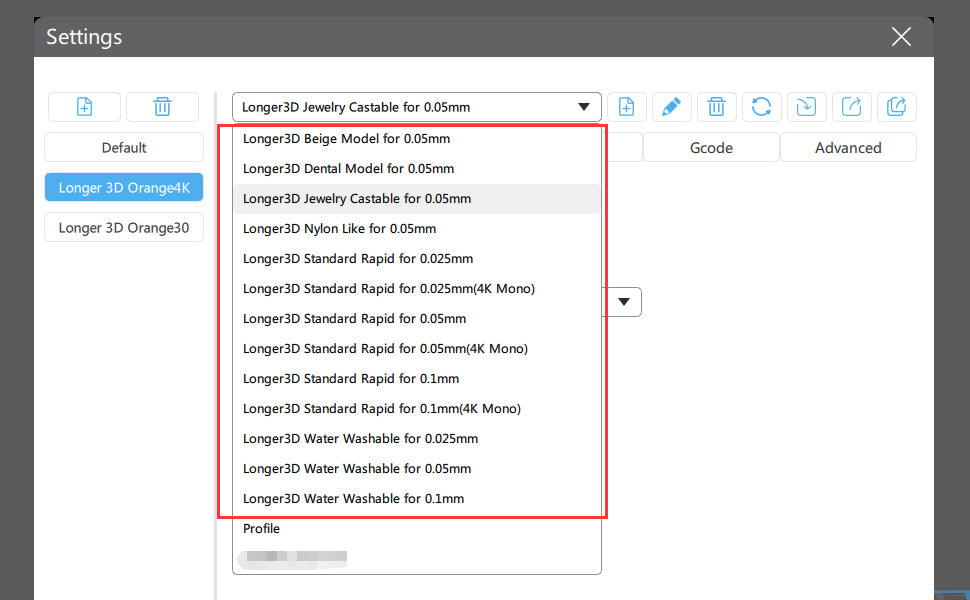
Import the official Orange 4K configuration file into CHITUBOX. After importing:

  • Default printing parameters from LONGER are applied
  • Resin profiles become available for reference

Note: Resin names with (4K Mono) are for Orange 4K Mono printers and use much less exposure time than 4K Color profiles.
Configuration of Orange 4K in Chitubox

Expected Result

  • Default print parameters appear in CHITUBOX
  • You can begin slicing files with correct exposure settings
  • Parameters can serve as references for other resin brands

Important Notes

  • Mono and Color printers use different exposure times
  • Incorrect settings may cause failed prints or overexposure
  • Always start with official profiles before adjusting for other resins

Understanding the Orange 4K Hardware

  • 5.5-inch monochrome LCD screen
  • 6480 × 3840 resolution at 10.5/31.5µm
  • Dual Z-axis for stable printing

The Orange 4K Mono prints faster and with higher precision due to its monochrome LCD, making it one of the finest LCD 3D printers available.

More information: Orange 4K Page

https://www.longer3d.com/collections/3d-printers-1

Common Problems and Solutions

Problem Possible Cause Solution
Plugin does not import Wrong OS version Download the correct .CHplugin
CHITUBOX cannot save slices Plugin missing Reinstall the plugin
Printer profile missing Config file not imported Re-import official Orange 4K configuration
Incorrect exposure Wrong resin profile Select (4K Mono) or 4K Color appropriately
Print fails to adhere Exposure mismatch Recheck default printing parameters

Tips for Better Results

  • Use official resin profiles first
  • Store plugin and config files in a dedicated folder
  • Verify printer type (Mono vs Color) before slicing
  • Reinstall plugin after CHITUBOX updates if needed
  • Test new resins with reference to LONGER profiles

Frequently Asked Questions

Q1: Does the Orange 4K need a plugin in CHITUBOX?
Yes, the official .CHplugin file is required for CHITUBOX compatibility.

Q2: Where to import the plugin?
Main Menu > Help > Plugin in CHITUBOX.

Q3: Difference between Orange 4K Mono and 4K Color?
Mono profiles use much lower exposure times than Color profiles.

Q4: Can I use other resin brands?
Yes, but start with LONGER default profiles as references.

Q5: Why is CHITUBOX not saving my slices?
This can happen if the plugin is missing or incompatible. Reinstalling the correct plugin solves this.

Q6: Which plugin file should I download?
Download the one matching your OS: Linux, macOS, Windows 32-bit, or Windows 64-bit.

Q7: Can I adjust print parameters manually?
Yes, but beginners should start with the official configuration first.

Q8: Is Orange 4K compatible with CHITUBOX?
Yes, it is officially supported for slicing and printing.


Final Thoughts

Following these steps ensures a stable setup for the LONGER Orange 4K in CHITUBOX. Using the official plugin and configuration files provides correct exposure settings and reliable slicing for both Mono and Color printers. Beginners should always start with official profiles and only adjust parameters after initial test prints.

Enjoy your printing with LONGER Orange 4K and share your results with the community!


By update-event | July 21, 2021
3D Printer Download Guidelines - LONGER
3D Printer Download Guidelines

To help users efficiently access all necessary resources for LONGER 3D printers, this guide organizes firmware, slicing software, manuals, and drivers in a clear structure. Each section also includes brief usage guidance to ensure proper installation and operation.

Longer3D Printers

1. LKxPro-Marlin

These firmware versions are based on the Marlin system and are mainly used for LK series FDM 3D printers. Users can choose the appropriate version based on compatibility and stability requirements. It is recommended to use stable versions unless specific features from newer firmware are needed.

2. Slicing Software Download - FDM 3D Printer

Slicing software converts 3D models into machine-readable G-code. LONGER Slicer is optimized for LONGER printers, while Cura provides more advanced parameter control for experienced users. Make sure to select the correct printer profile before slicing.

3. Slicing Software Download - Resin 3D Printer

These slicing tools are specifically designed for resin 3D printing. Chitubox and Lychee offer advanced support generation and exposure control, while LongerWare is optimized for compatibility with LONGER resin printers.

4. Firmware Download 

Firmware controls the core operation of your machine. Updating firmware can improve performance, fix bugs, and enhance stability. Always confirm your printer model before upgrading.

LK4 3D Printer

LK4 PRO 3D Printer

LK5 PRO 3D Printer

LK5 3D Printer

LK1 3D Printer

Cube 2 3D Printer

LK1 PRO 3D Printer

LK1 PLUS 3D Printer

Orange 10 3D Printer

  • Because there are several versions of firmware for Orange 10, please contact our support team first before updating at support@longer3d.net

Orange 4K 3D Printer

LONGER RAY5 laser engraver

5. Manual Download 

Manuals provide essential instructions for setup, operation, and maintenance. It is highly recommended to read them before using your machine.

LK4 3D Printer

LK4 PRO 3D Printer

LK5 PRO 3D Printer

LK1 3D Printer

Cube 2 3D Printer 

LK1 PRO 3D Printer

Orange 10 3D Printer

Orange 30 3D Printer

Orange 4K 3D Printer

6. Drive Program for FDM 3D Printer 

These drivers are required for establishing a stable connection between your computer and the printer. After installation, ensure the correct COM port is recognized by your system.

7. TF Card / USB Disk Content to LONGER 3D Printer  

These files usually include test models, sample G-code, and default configurations. They are useful for initial setup and functional verification.

8. TF Card Format Tool

Conclusion

If you still have any questions during operation, please visit our Support Page, where our knowledgeable staff is ready to assist you and your team with any technical inquiries. LONGER provides comprehensive support to ensure you can fully unlock the potential of your 3D printer. On the LONGER website, you will find an overview of products and services, frequently asked questions, software compatibility downloads, and detailed comparisons between different machine models to help you make informed decisions.

This comprehensive resource guide is designed to help users quickly locate and correctly use all necessary files for the LONGER 3D printers. By following the structured categories and ensuring compatibility between firmware, software, and hardware, users can significantly reduce setup issues and improve overall workflow efficiency. Whether you are installing your machine for the first time or optimizing performance through updates, having access to the correct resources and understanding their purpose is essential for achieving stable operation and high-quality results across different applications.

By update-event | January 24, 2021